You start a coding task, step away, and return to find your Mac asleep while the Agent still has work to do. Leaving the display on all night is wasteful; closing the lid can put the Mac to sleep. The practical need is simple: keep the computer available for the task, then let it return to normal sleep when you are finished.

Codoop Island gives you control over that work session. You can keep the screen on, let the screen turn off while the Mac stays awake, or use closed-lid mode on supported devices. Sleep prevention is a manual setting: Codoop does not detect when an Agent starts or finishes and switch sleep behavior automatically. Turn it on for the task, then turn it off when you have checked the result.
Choose how your Mac should stay awake
Open Codoop Island and go to Screen & sleep control. Turn on Keep your computer awake, then choose the behavior that fits where you are working:
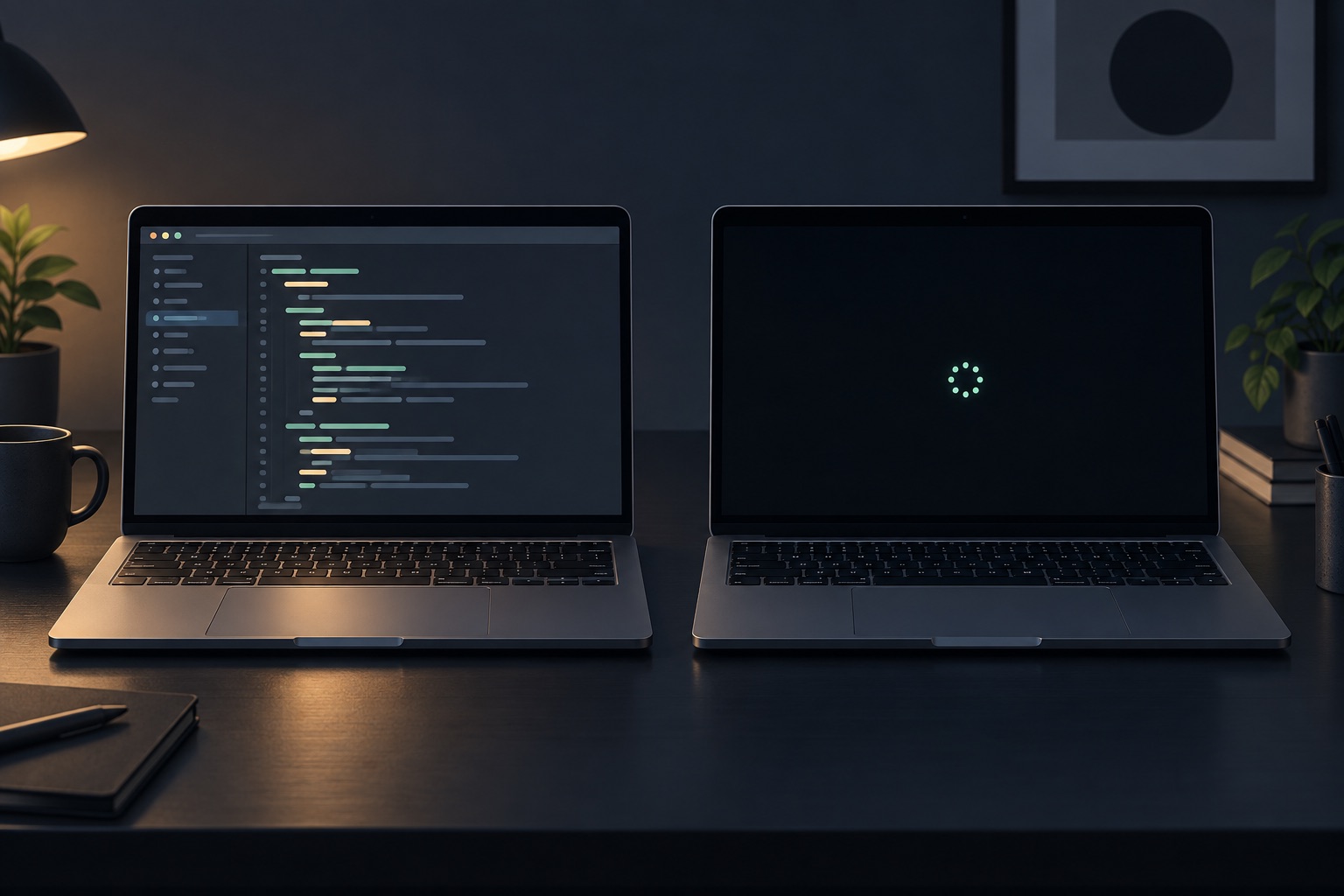
- Keep the screen on keeps the display on and prevents the computer from sleeping.
- Allow the screen to turn off lets the display follow its normal timer while the computer stays awake. This is useful when you want a long task to continue without leaving the screen lit.
- Stay awake with the lid closed keeps the computer running with the lid closed on supported devices. Codoop will ask for system authorization when you enable this mode.
If you are staying at your desk, keeping the screen on makes the Agent easy to check. If you are stepping away, Allow the screen to turn off avoids lighting the room while keeping the computer awake. The first two modes follow your system settings when you close the lid. Closed-lid behavior depends on the Mac and its configuration; the built-in display is not guaranteed to stay illuminated with the lid shut.
Turn it off when the work is done
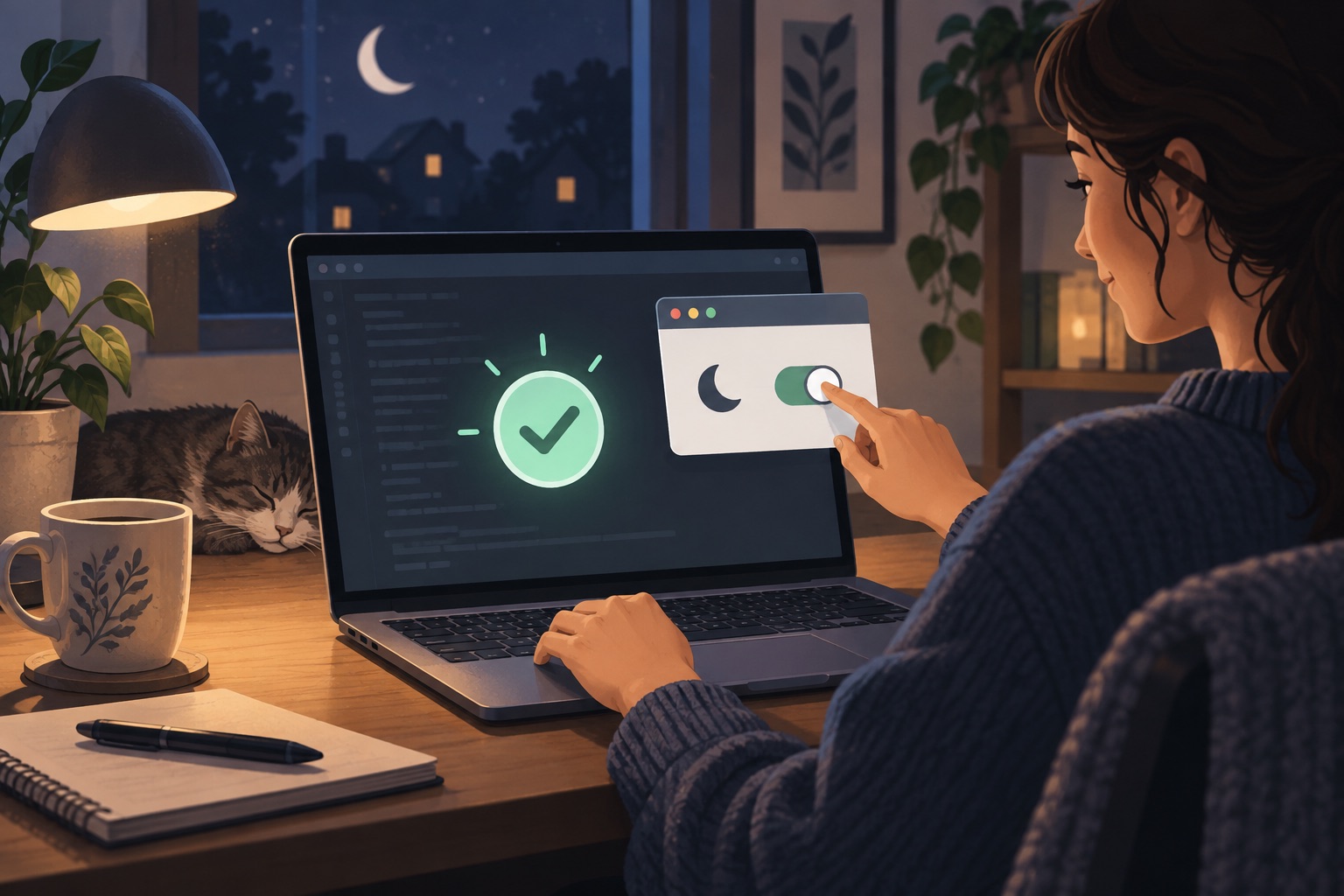
When your Agent reports completion, check its original app for the final result and make sure no build or other follow-up task is still running. Then turn off Keep your computer awake in Codoop Island. Your Mac can return to its usual sleep behavior. This last step matters because the setting is not tied to a particular Agent session.
If you use closed-lid mode, turn it off before putting the Mac to sleep or packing it away. This mode can prevent manual sleep while it is active. Keep the Mac on a hard, ventilated surface while it runs.
Keep an eye on battery and power
Preventing sleep can use more power. Codoop Island includes a low-battery cutoff, set to 20% by default, with 10%, 20%, 30%, and never options. If the battery reaches the selected threshold while unplugged, sleep prevention turns off. After charging, enable it again yourself if the task is still running. For long tasks, connect power when practical and choose the screen-off mode if you do not need to watch the display.
Apple notes that preventing sleep can increase power consumption, and that some power options vary by Mac model.
A simple routine
- Start the coding task and confirm it is running in its Agent app.
- In Codoop Island, enable Keep your computer awake and pick a screen mode.
- Check the Agent's result when you return.
- Turn sleep prevention off when the task is finished.
The key is to make sleep prevention part of the task routine: enable it when you leave a long task running, choose a screen mode that suits the moment, check the Agent's result when you return, and restore normal sleep afterward.